GSE Smart IPTV is a long-running IPTV player that has been especially popular on Apple devices. It supports several playlist formats, a programme guide and a range of playback options. Like all players, it does not provide channels; you add a playlist or login from your own IPTV service.
This guide explains where GSE Smart IPTV runs, how to set it up, its main features, and how to fix common problems.
Where GSE Smart IPTV runs
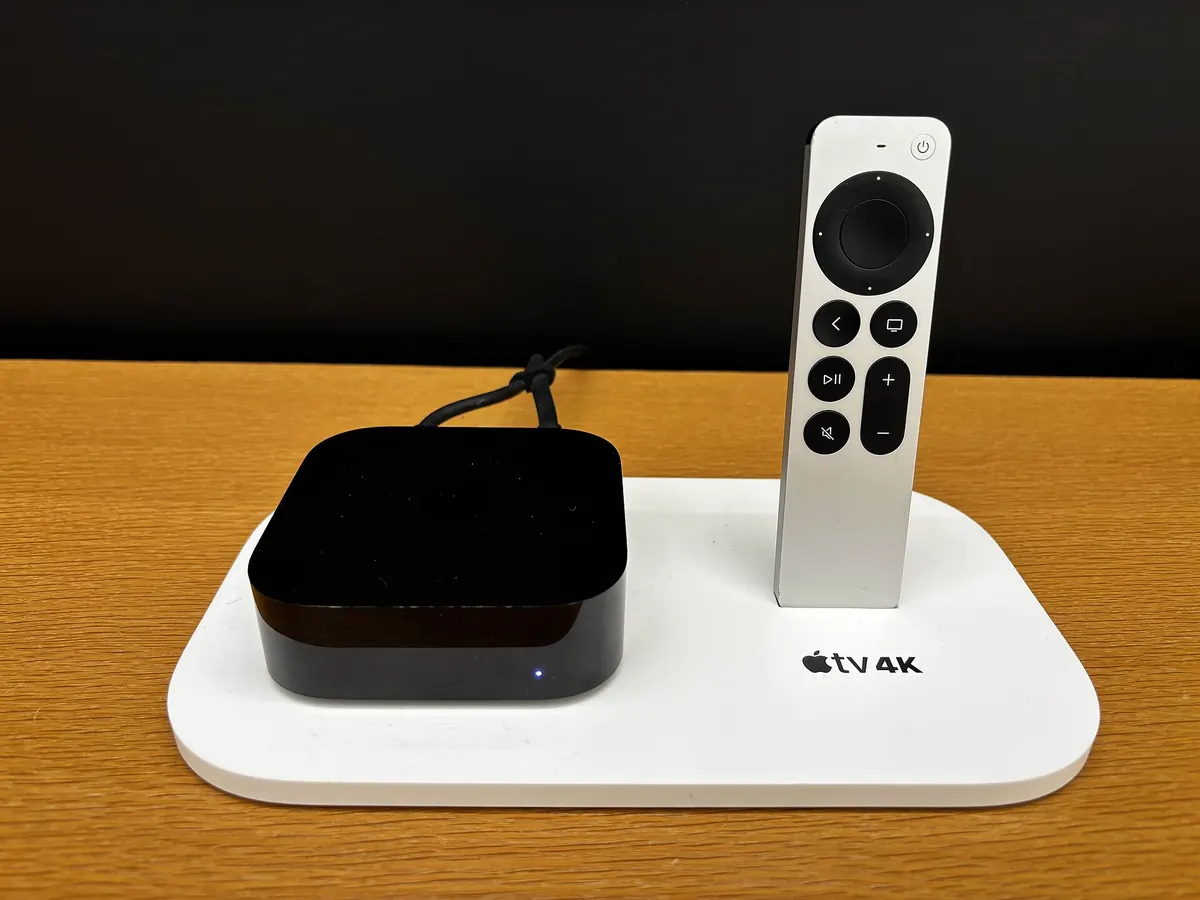
Versions of the app have been available for iPhone and iPad, Apple TV, Android and Mac. Availability and features can differ between platforms and change over time, so check your device's official app store for the current version. On Apple TV, it is one of several players available through the App Store; see our guide to IPTV on Apple TV.
Key features
| Feature | Description |
|---|---|
| M3U playlists | Add a playlist by link or file |
| Xtream Codes API | Log in with server address, username and password |
| EPG support | Load an XMLTV programme guide |
| Favourites | Keep your most-watched channels together |
| Parental controls | Lock content behind a PIN |
| Player options | Choose between playback engines for compatibility |
| Casting | Send video to compatible devices on some platforms |
Some features may be limited in the free version or require a one-time purchase. Check the app listing for current details.
How to set up the app
Adding an M3U playlist
- Open the app and go to the remote playlists section.
- Choose to add an M3U URL.
- Enter a name for the playlist and paste your M3U link exactly.
- Save, then open the playlist to load channels.
Adding an Xtream Codes login
- Open the Xtream Codes API section.
- Add a new account with your server address, username and password.
- Make sure the server address includes
http://orhttps://and any port number. - Save and open the account to load live TV and any on-demand content.
Loading the programme guide
If the guide does not load automatically, go to the EPG section and add the XMLTV guide link your provider supplies. Then match it to your playlist and refresh. Our guide to IPTV schedules and EPG data explains how guide data works.
Tips for getting more from the app
- Try a different player engine in settings if a stream plays audio but no picture, or stutters.
- Use favourites to build a short list of everyday channels.
- Refresh the EPG regularly so the guide stays accurate.
- Use Wi-Fi or Ethernet rather than mobile data for long viewing sessions.
- Keep the app updated for bug fixes and compatibility with new system versions.
Organising large playlists
Big playlists can be slow to browse on a phone. Use the app's groups and favourites to cut the list down to what you actually watch, and consider hiding categories you never open. If your provider offers separate playlists for different categories, adding only the ones you need can make the app noticeably faster on older devices.
Using it on several Apple devices
Many people run the app on an iPhone for quick checks and on an Apple TV for the main screen. Each device needs its own playlist or account entry, and each counts towards your plan's simultaneous device limit while streaming. Keep a note of your playlist link and guide address so you can add them quickly on a new device.
Common GSE Smart IPTV problems
| Problem | Likely cause | Fix |
|---|---|---|
| Playlist will not load | Wrong link or expired account | Recheck the link; confirm the account is active |
| Login fails with Xtream | URL format or typo | Include scheme and port; retype details |
| Guide is empty | EPG not added or not matched | Add the EPG link and refresh |
| Stream stutters | Network or player engine | Switch engine; improve Wi-Fi |
| No sound on some channels | Audio format not supported by the engine | Try another player engine |
For network-related problems, see our guide to IPTV streaming quality.
GSE Smart IPTV versus other players
Its strengths are its long history on Apple devices and its support for several playlist formats. On Android TV, TV-focused players such as TiviMate offer a more traditional guide. On phones and tablets, many players are similar, so choose the one whose layout you prefer. Our IPTV player guide compares the options.
Is it the right player for you?
It is a good fit if you use Apple devices, want one app across iPhone, iPad and Apple TV, and are comfortable adding playlists and EPG links manually. If you want the simplest possible setup on a TV, a player with automatic guide loading through Xtream Codes may feel easier.
Using GSE Smart IPTV with Monster IPTV
Monster IPTV works with third-party players. iPhones are on the confirmed device list; if you plan to use Apple TV or iPad, ask support before ordering. Support can send your details as an M3U link or Xtream-style login, whichever your app needs. Request the free trial to test the app on your device, or see supported devices.
Frequently asked questions
Is GSE Smart IPTV free?
The app has been offered free on some platforms with optional paid features, and as a paid app on others. Check your app store for current pricing. It does not include channels.
Does GSE work on Apple TV?
A tvOS version has been available through the App Store. Search the App Store on your Apple TV to confirm current availability.
Can the app use Xtream Codes logins?
Yes, it supports Xtream Codes API accounts as well as M3U playlists.
Why is my guide empty?
The EPG link may not be added, or it may not be matched to your playlist. Add the link your provider supplies and refresh the guide.
Can I use the same playlist on my iPhone and Apple TV?
Yes, add it on each device. Remember that each device streaming at the same time counts towards your plan's limit.
Summary
GSE Smart IPTV is a flexible player for Apple devices and Android, supporting M3U playlists, Xtream Codes logins and EPG data. Add your details carefully, load the guide, choose the right player engine, and test on your device before settling on it.