Smooth IPTV streaming depends on a chain of links: the provider's servers, the internet between them and you, your router and Wi-Fi, your streaming device and the player app. When any link is weak, you see buffering, freezing or a picture that suddenly turns soft. The good news is that many problems start inside the home, where you can fix them.
This guide explains why buffering happens and gives you a step-by-step plan to improve playback.
How IPTV streaming works
When you choose a channel, your player app requests the stream and starts downloading short segments of video, keeping a few seconds in a buffer. As long as segments arrive faster than they are played, the picture is smooth. If they arrive too slowly, the buffer empties and playback pauses.
Many services use adaptive bitrate streaming, preparing each channel at several quality levels. When your connection slows, the player switches to a lower quality rather than stopping. That is why the picture sometimes softens for a few seconds before sharpening again.
The most common causes of buffering
| Cause | Typical symptom | Where to fix it |
|---|---|---|
| Weak or congested Wi-Fi | Buffering in some rooms, worse in the evening | Router placement, Ethernet, mesh Wi-Fi |
| Too many devices streaming | Problems when others are online | Reduce load or upgrade broadband |
| Underpowered device | Stutter even on a fast connection | Faster stick or box |
| Outdated app or firmware | Crashes, odd errors | Update the app and device |
| Busy source or provider | Problems on all devices at once | Contact the provider |
| Broadband line issues | Slow speeds everywhere | Contact your broadband provider |
Step-by-step: improve your IPTV streaming
1. Restart the basics
Restart the player app, then the streaming device, then the router. It sounds simple, but it clears many temporary faults, especially on devices that have been on for weeks.
2. Use Ethernet where you can
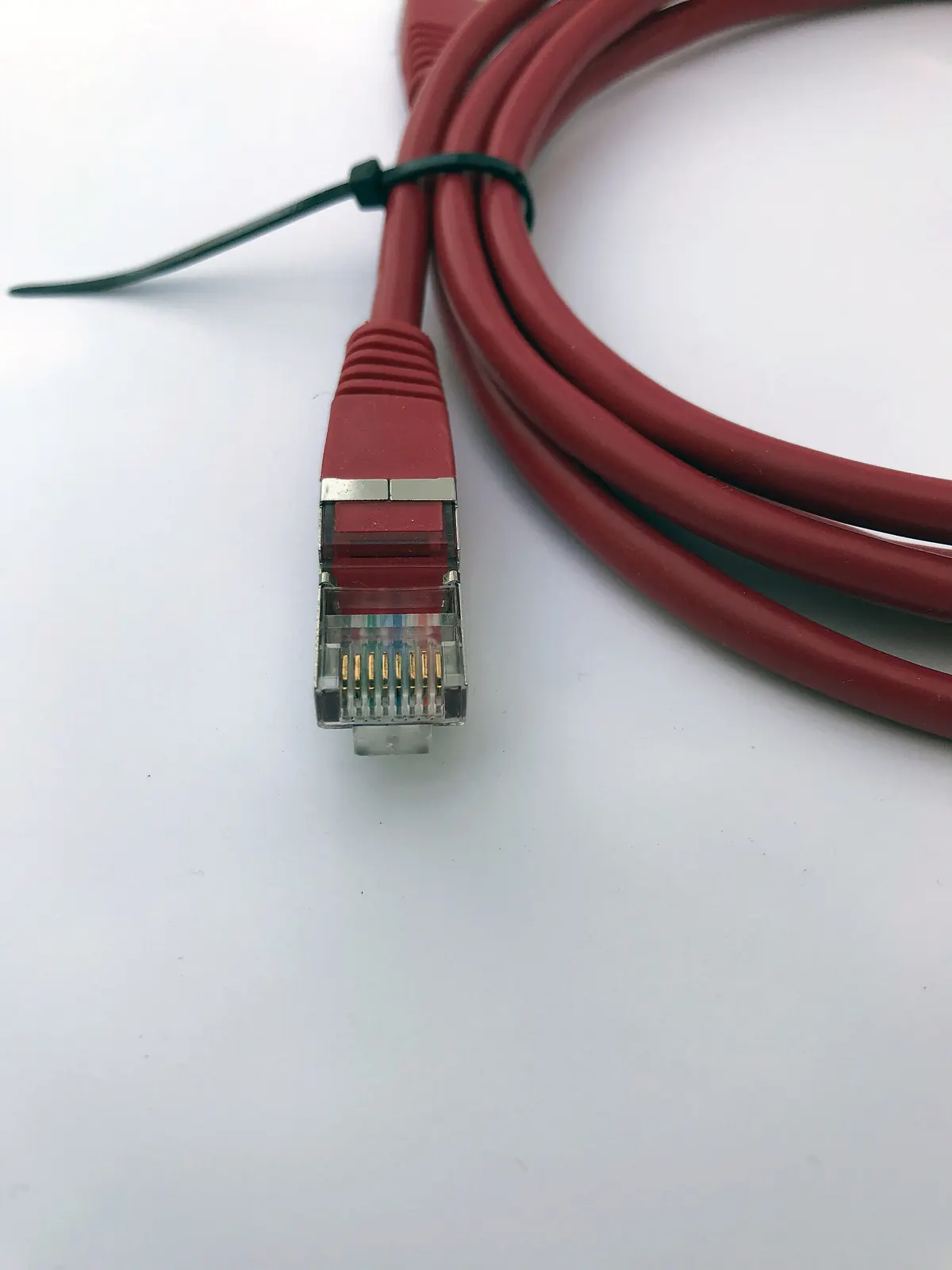
A wired Ethernet connection is the single most effective upgrade for a TV or streaming box. It removes Wi-Fi interference and gives consistent speed. Some streaming sticks need an Ethernet adapter, which is inexpensive and worth it for a main TV.
3. Improve your Wi-Fi
If cables are not practical:
- Place the router centrally, off the floor and away from thick walls, mirrors and microwaves.
- Use the 5 GHz band for streaming devices close to the router; it is faster and usually less crowded.
- Consider a mesh Wi-Fi system for larger homes or rooms far from the router.
- Avoid positioning a streaming stick behind the TV where the signal is blocked; an HDMI extender can help.
4. Check what else is using the connection
Large downloads, game updates, cloud backups and other video streams all compete for bandwidth. Pausing them during important live events can make a noticeable difference. Remember that each screen watching IPTV counts as its own stream.
5. Update apps and devices
Keep your player app and device firmware up to date. Updates often fix playback bugs and improve codec support.
6. Try a different player app
Player apps handle buffering differently. Some let you increase the buffer size, which helps on unstable connections. Our guide to choosing an IPTV player compares the options.
7. Check the device is up to the job
Older or entry-level sticks may struggle with HEVC or high-bitrate streams. If buffering happens only on one device while others are fine, the device itself may be the bottleneck. Our IPTV box guide explains what to look for.
8. Test at different times
If problems appear only at peak times on every device, congestion may be outside your home, either on your broadband line or at the source. Note the times and channels, then contact your provider with specifics.
Will a VPN help?
Sometimes, but usually not. A VPN adds encryption overhead and may slow things down. It can occasionally help if your broadband provider slows certain traffic. Our guide to the best VPN for IPTV explains when it is worth testing.
IPTV streaming and live events
Live sport and major events put the most pressure on every part of the chain. To give yourself the best chance:
- Use Ethernet on the main TV.
- Start the stream a few minutes early.
- Pause other heavy internet use.
- Avoid switching channels rapidly, which forces the app to rebuild its buffer.
Expect a short delay compared with broadcast TV. Segment-based IPTV streaming naturally runs a little behind live.
Getting help from Monster IPTV
If you use Monster IPTV and still have problems after these steps, contact support with your device, player app, the channels affected and the times it happens. That detail makes it much faster to find the cause. See the contact page or check the setup notes for your device.
Frequently asked questions
What internet speed do I need for IPTV streaming?
There is no single figure. HD needs less than 4K, and every additional screen adds to the total. Stability matters as much as speed, so a steady connection with some headroom works better than a fast but erratic one.
Why does IPTV buffer only in the evening?
Evening is peak time for home internet use. Your Wi-Fi, your broadband line and the provider's servers are all busier, so weaknesses show up more.
Is Ethernet really better than Wi-Fi for IPTV?
For most homes, yes. Ethernet avoids interference and signal drop-off, giving steadier speed. It is the most reliable fix for a main TV.
Can my streaming stick cause buffering?
Yes. Older or entry-level devices may struggle to decode modern codecs or high-bitrate streams. If only one device buffers, try another device to compare.
Should I clear the app cache?
On Android-based devices, clearing an app's cache can fix sluggish behaviour. Avoid clearing data unless you are ready to re-enter your login details.
Summary
Good IPTV streaming comes from a strong chain: a capable device, an updated app, a stable home network and a reliable source. Start inside your home with restarts, Ethernet and better Wi-Fi, then work outwards. Most buffering problems can be fixed with a few practical changes.