Chromecast IPTV setups come in two very different forms. Older Chromecast dongles have no apps of their own: you cast video to them from an app on your phone or computer. Chromecast with Google TV, and Google's newer Google TV Streamer, are full streaming devices that run apps directly. Knowing which one you have decides how you set up IPTV.
This guide explains both approaches, how to set each up, and how to fix the problems people run into most often.
Which Chromecast do you have?
| Device | How it works | IPTV approach |
|---|---|---|
| Chromecast (older, cast-only models) | Receives streams cast from a phone or computer | Cast from a player app that supports Google Cast |
| Chromecast with Google TV | Runs Google TV with its own remote and apps | Install a player app directly |
| Google TV Streamer | Google's newer Google TV box | Install a player app directly |
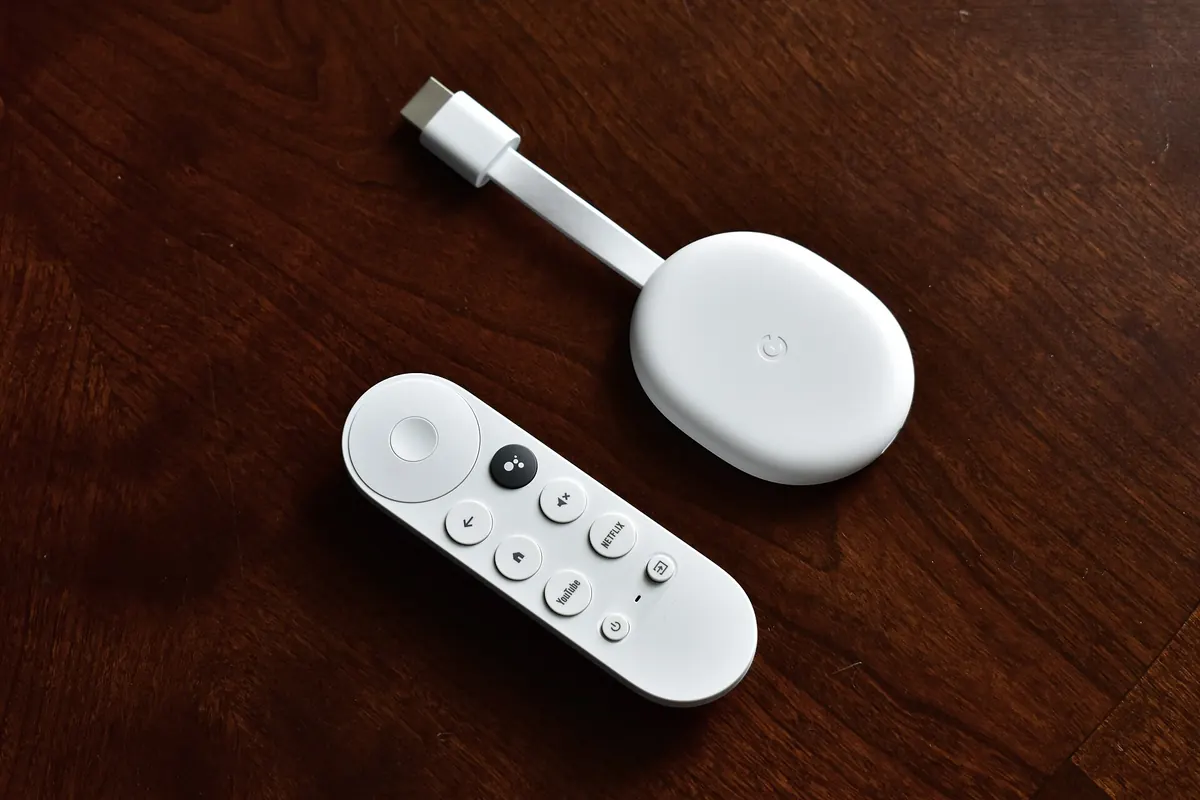
If your device came with a remote and shows a home screen with apps, it runs Google TV. If it has no remote and only shows a backdrop until you cast, it is a cast-only model.
Google stopped making the original Chromecast line in 2024 and introduced the Google TV Streamer, but many Chromecast devices remain in use.
Option 1: Chromecast IPTV by casting
With a cast-only Chromecast, the player app runs on your phone, tablet or computer and sends the video to the TV.
- Connect your phone and Chromecast to the same Wi-Fi network.
- Install an IPTV player app on your phone that supports Google Cast.
- Enter your login details in the phone app.
- Start a channel, tap the Cast icon and choose your Chromecast.
Casting is convenient, but it has limits. Not every IPTV player supports Google Cast, some streams may not cast due to their format, and your phone acts as the remote. The programme guide experience is usually better on a device that runs the app itself.
Option 2: installing apps on Google TV
Chromecast with Google TV and the Google TV Streamer run Google TV, which is based on Android TV. That means you can install player apps from the Google Play Store and use them with the included remote, just like an Android TV box.
- Complete setup and install system updates.
- Open the Google Play Store and search for an IPTV player such as TiviMate or IPTV Smarters.
- Install the app, open it and choose the login type that matches your details.
- Enter your server address, username and password, or your M3U playlist link.
- Let the channels and guide load, then test a few channels.
Our guides to the TiviMate IPTV player and IPTV apps compare popular choices.
Casting versus Google TV: which is better?
| Factor | Casting | Google TV apps |
|---|---|---|
| Remote control | Your phone | Dedicated TV remote |
| Programme guide | Limited, on your phone | Full guide on the TV |
| App choice | Apps with Cast support only | Any compatible Play Store app |
| Phone battery | Used while casting starts | Not needed |
| Stability | Depends on phone and Wi-Fi | Device streams directly |
For everyday viewing, installing an app on Google TV is usually the better Chromecast IPTV experience. Casting is a handy extra for occasional use or when you are away from your main setup.
Improving Chromecast IPTV playback
- Use the power adapter supplied, not the TV's USB port.
- Improve Wi-Fi by moving the router closer or using a mesh system. Chromecasts sit behind the TV, where the signal can be weak.
- Add an Ethernet adapter for Google TV models; Google sells compatible power adapters with Ethernet.
- Clear the player app's cache on Google TV if menus become sluggish.
See our guide to IPTV streaming quality for more.
Common Chromecast IPTV problems
The Cast icon does not appear
Check both devices are on the same network, disable any VPN on your phone, and confirm the player app supports Google Cast.
The stream casts but will not play
Some stream formats are not supported for casting. Try another player app, or install the app directly on a Google TV device.
Login works on the phone but not on Google TV
Re-enter the details carefully on the TV, checking http:// or https://, the port number and any trailing spaces.
Using Chromecast IPTV while travelling
A cast-only Chromecast is small enough to pack, which makes it tempting for hotel rooms. In practice, many hotel networks block casting between devices or require a browser sign-in that a Chromecast cannot complete. A Google TV device with its own remote, or simply watching on a laptop or tablet, is often less frustrating away from home.
Using Monster IPTV with Chromecast
Monster IPTV is used on Android TV devices, and Google TV devices run Android TV apps, so a Chromecast with Google TV can work with a compatible player. Cast-only Chromecasts depend on the casting support of your phone app. Ask support which app to use, then test with the free trial. See supported devices.
Frequently asked questions
Can a cast-only Chromecast run IPTV apps?
No. It can only receive streams cast from another device. You need a player app on your phone or computer that supports Google Cast.
Is Chromecast with Google TV the same as Android TV?
Google TV is built on Android TV with a different home screen. Apps from the Play Store for Android TV generally work on it.
Why does casting stop when I lock my phone?
Some apps keep control on the phone during casting. Check the app's settings, or switch to an app installed on a Google TV device.
Do I need Wi-Fi for Chromecast IPTV?
Yes, unless you use an Ethernet adapter on a Google TV model. Cast-only Chromecasts always rely on Wi-Fi.
Which is better for IPTV, Chromecast or Fire TV Stick?
Both work well when they run apps directly. Chromecast with Google TV uses the Play Store; Fire TV uses the Amazon Appstore. Choose the one whose app store offers the player you prefer.
Summary
Chromecast IPTV works either by casting from a phone or by installing an app on Google TV. For daily viewing, a Google TV device running a dedicated player gives the best experience. Casting is a useful extra, as long as your player app supports it.