The TiviMate IPTV player is a popular choice for watching IPTV on a television. It is designed specifically for TV screens and remote controls, with a programme guide that looks and feels like traditional cable or satellite TV. Like other players, TiviMate does not include any channels: you add your own IPTV service using a playlist link or login details.
This guide covers which devices TiviMate runs on, how to set it up, what the Premium upgrade adds, and tips for getting the best experience.
What TiviMate is
TiviMate is an IPTV player developed by AR Mobile Dev for Android TV-based devices. That includes Android TV boxes, Google TV devices and many Amazon Fire TV models. It is not designed for phones or tablets, and it is not available for Apple TV, Samsung or LG TVs.
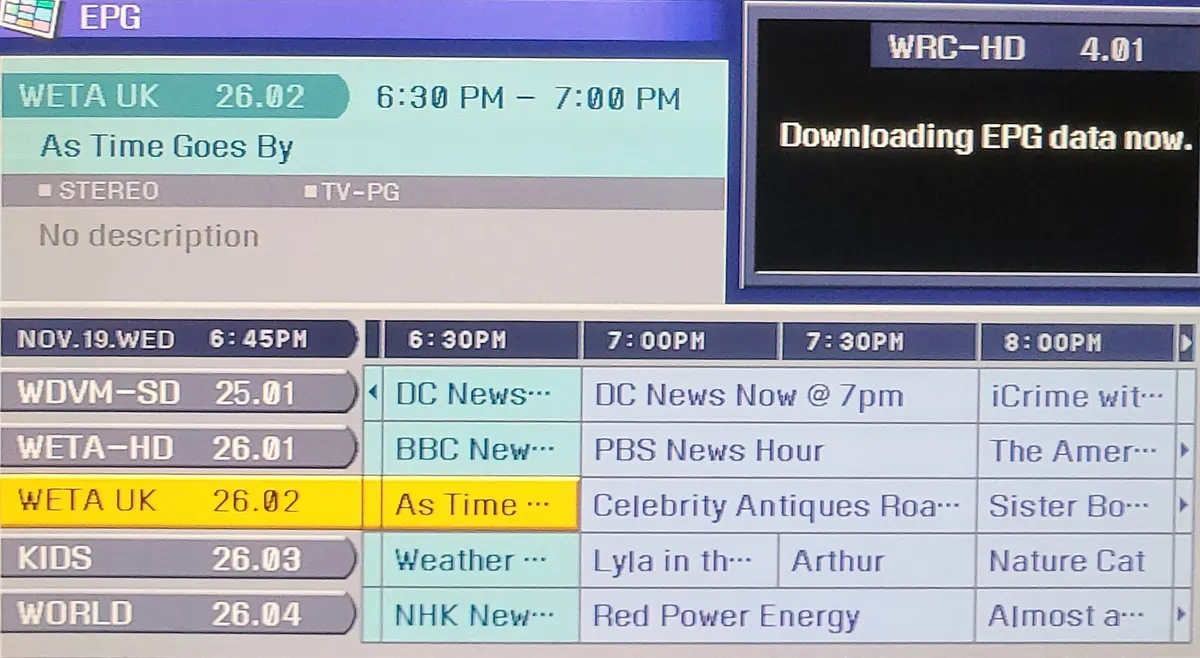
Its main appeal is a fast, familiar, grid-style programme guide and a layout built around a remote control.
Free version versus Premium
TiviMate offers a free version and a paid Premium upgrade.
| Feature | Free | Premium |
|---|---|---|
| Live TV with programme guide | Yes | Yes |
| Number of playlists | One | Several |
| Favourites and custom groups | Limited | Full management |
| Catch-up (when the service supports it) | No | Yes |
| Recording | No | Yes |
| Multi-view | No | Yes |
| Customisation options | Basic | Extensive |
Premium is bought through a separate companion app on an Android phone, then activated on the TV device. Pricing and options can change, so check the current details in the companion app. Premium unlocks player features only; it does not include any content.
How to set up the TiviMate IPTV player
- Install TiviMate from the Google Play Store on Android TV or Google TV, or from the Amazon Appstore on Fire TV if available for your model.
- Open the app and choose "Add playlist".
- Select the login type: an M3U playlist link, or Xtream Codes login with server address, username and password.
- Enter your details exactly, including
http://orhttps://and any port number. - Name the playlist and let TiviMate load channels.
- Add the EPG. With Xtream Codes logins the guide usually loads automatically; with M3U, you may need to add a separate EPG link in the settings.
Getting the most from TiviMate
Organise your channels
Long-press a channel to add it to favourites, then hide groups you never watch. A tidy list makes the guide faster to browse and easier for everyone at home.
Tune the programme guide
In settings, you can control how often the EPG updates, how many days are kept and how the guide looks. Shorter guide periods load faster on older devices.
Use channel-number navigation
TiviMate supports channel numbers, so you can type a number on the remote to jump straight to a channel, just as on traditional TV.
Adjust playback settings
If streams stutter, try changing the decoder setting or buffer size in the playback settings. Larger buffers help on unstable connections at the cost of slightly slower channel changes.
Record and catch up (Premium)
With Premium, you can record programmes to local storage or a network drive, and use catch-up on channels where your service provides it.
Common TiviMate IPTV player issues
| Issue | Likely cause | Fix |
|---|---|---|
| Programme guide is empty | EPG not added or not updated | Add or refresh the EPG source in settings |
| Guide times are wrong | Time zone mismatch | Adjust the EPG time offset |
| Channels will not play | Login details, account status or stream format | Recheck details; try another decoder setting |
| App is slow | Very large playlist on a low-power device | Hide unused groups; reduce guide days |
For general network issues, see our guide to IPTV streaming quality.
Using TiviMate in a multi-room home
If you have several TVs, install TiviMate on each Android TV or Fire TV device and add the same playlist. Premium can cover more than one device per account, which keeps favourites and settings consistent. Remember that each TV streaming at the same time counts towards your IPTV plan's simultaneous device limit, so a household with three TVs in use needs a plan that allows three connections.
Backing up your settings
After spending time organising favourites and groups, use the backup option in TiviMate's settings to save your configuration. If you reset the device or move to a new box, restoring the backup brings back your layout in seconds instead of starting again.
TiviMate versus other IPTV players
TiviMate's strength is its TV-first design and guide. IPTV Smarters Pro is available on more platforms, including phones and Apple devices, and has a more menu-based layout. Many people use TiviMate on the TV and another app on their phone. Our IPTV player guide compares options in more detail.
Using TiviMate with Monster IPTV
Monster IPTV works with third-party players such as TiviMate on Android TV and Fire TV devices. After activation, support sends your login details in the format TiviMate needs. Request the free trial to test it on your device, or see the Android TV setup notes.
Frequently asked questions
Is the TiviMate IPTV player free?
There is a free version with core features and a paid Premium upgrade. Neither includes channels; you add your own IPTV service.
Can I use TiviMate on my phone?
TiviMate is designed for Android TV-based devices rather than phones. On a phone, use a mobile-friendly player instead.
Does TiviMate work on Fire TV?
Many Fire TV models run Android-based Fire OS and can run TiviMate. Some newer models use a different operating system, so check availability for your device.
How do I add an EPG to TiviMate?
Xtream Codes logins usually include the guide automatically. For M3U playlists, open the playlist settings and add the EPG link your provider supplies.
Summary
The TiviMate IPTV player is an excellent choice for Android TV and Fire TV users who want a traditional TV guide. Add your playlist carefully, set up the EPG, organise favourites, and consider Premium if you want recording, catch-up and multiple playlists.