If you want to know how to convert HDMI to IPTV, the short answer is: use an encoder. An HDMI IPTV encoder takes the HDMI output of a camera, computer or media player, compresses it and sends it over your network as a stream that TVs, set-top boxes, apps and online platforms can play.
This step-by-step guide covers planning, hardware, network configuration, encoding settings, testing and troubleshooting, so you can build a reliable setup the first time.
What you need
| Item | Purpose |
|---|---|
| HDMI source | Camera, PC, media player or vision mixer |
| HDMI IPTV encoder | Compresses and streams the signal |
| Network switch | Connects the encoder to receivers; IGMP snooping recommended for multicast |
| Receivers | IPTV set-top boxes, smart TV apps, media players or VLC |
| A computer | For configuring the encoder and testing the stream |
For help choosing hardware, see our HDMI IPTV encoder guide.
How to convert HDMI to IPTV: the overview
The whole process has seven stages: plan the destination, connect the hardware, give the encoder a network address, configure encoding, configure the output, test, and set up receivers. Skipping the planning stage is the most common cause of rework, because the destination determines the protocol, codec and bitrate you choose.
Step 1: plan where the stream needs to go
Your destination decides almost every setting:
- TVs on the same local network → UDP or RTP multicast is efficient for many screens.
- One or two receivers locally → unicast UDP, RTP or RTSP is simpler.
- An online platform or remote site → RTMP or SRT to the platform's ingest address.
- Browsers and apps → HLS, often via a media server.
Write down your receivers and destinations before touching any settings.
Step 2: connect the hardware
- Connect the HDMI source to the encoder's HDMI input.
- If the encoder has an HDMI loop-out, connect a local monitor.
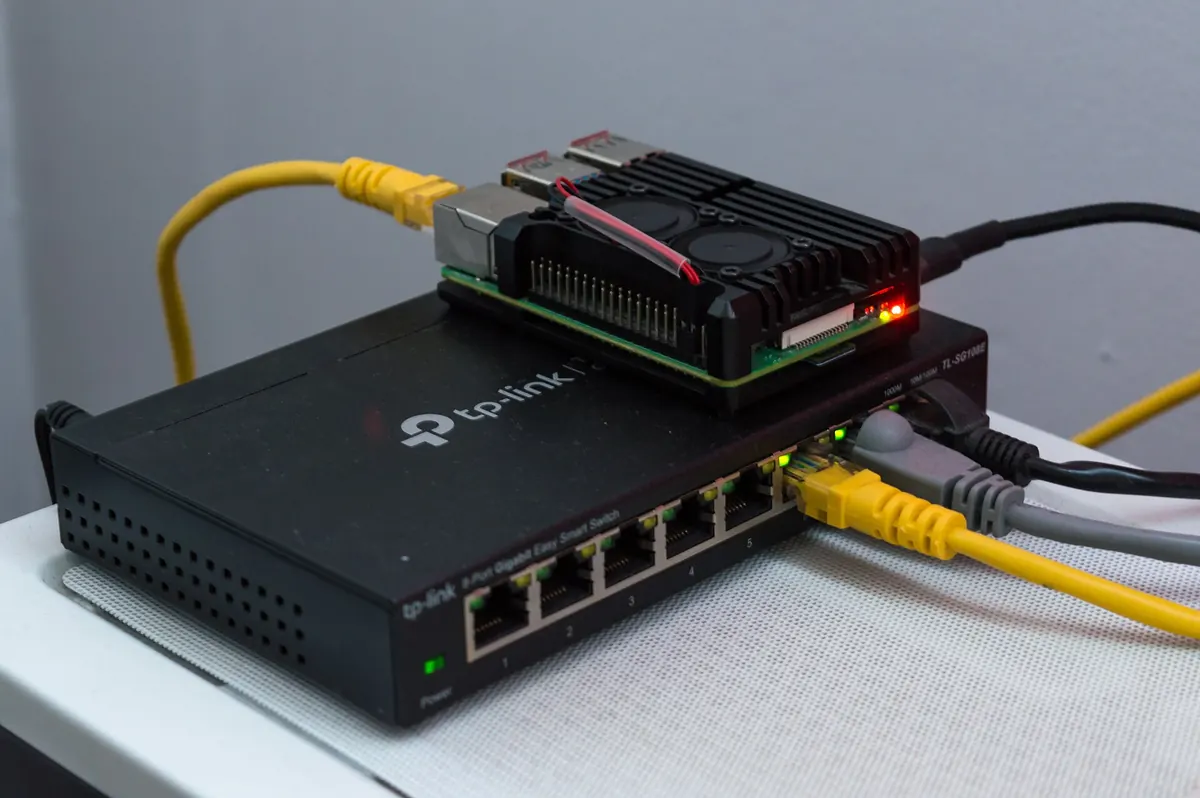
- Connect the encoder to the network switch with an Ethernet cable.
- Power the encoder, using PoE if supported.
Use a source without HDCP copy protection. Compliant encoders will not capture HDCP-protected signals from pay-TV boxes or disc players, and redistributing such content generally requires licences.
Step 3: give the encoder a network address
Open the encoder's web interface, usually by browsing to its default IP address from a computer on the same network. Then:
- Set a static IP address in your network's range, or reserve one in your router's DHCP settings.
- Set the subnet mask, gateway and DNS server if the encoder needs internet access.
- Change the default admin password.
Step 4: configure encoding settings
| Setting | Starting point | Notes |
|---|---|---|
| Codec | H.264 | Use H.265 only if all receivers support it |
| Resolution | Match the source, e.g. 1080p | Downscale to save bandwidth if needed |
| Frame rate | Match the source, e.g. 25, 30, 50 or 60 | Avoid unnecessary conversion |
| Bitrate | Moderate constant bitrate for 1080p | Raise for fast motion, lower for slides |
| GOP / keyframe interval | Around 1 to 2 seconds | Shorter helps channel switching and online platforms |
| Audio | AAC, stereo | Check embedded HDMI audio is selected |
Step 5: configure the output
For multicast on a local network
- Choose a multicast address in an administratively scoped range, for example
239.x.x.x, and a port such as 1234. - Set the TTL so the stream does not leave your local network unless intended.
- Enable IGMP snooping on your switches so multicast traffic reaches only the ports that request it.
For an online platform
- Select RTMP or SRT output.
- Paste the platform's ingest URL and stream key.
- Match the platform's recommended resolution, bitrate and keyframe settings.
Step 6: test with VLC
Testing on a computer before configuring TVs saves time:
- Open VLC and choose Media, then Open Network Stream.
- For multicast, enter an address such as
udp://@239.1.1.1:1234using your chosen address and port. - For unicast or RTSP, enter the address shown in the encoder's interface.
- Check picture, audio and lip sync for a few minutes.
Step 7: configure the receivers
Add the stream address to each IPTV set-top box, smart TV app or media player. In larger systems, a middleware platform or channel list is used to present the stream as a named channel alongside others; see our guide to the IPTV headend.
Scaling up to several sources
Once one source works, adding more follows the same pattern. Give each encoder or encoder channel its own IP address and, for multicast, its own group address and port, for example 239.1.1.1, 239.1.1.2 and so on. Keep a simple spreadsheet listing each source, its address, bitrate and purpose. When the number of channels grows, a multi-channel or rack-mount encoder can be tidier than several separate boxes; our IPTV encoder guide explains the options.
Troubleshooting
| Problem | Likely cause | Fix |
|---|---|---|
| No stream in VLC | Wrong address or port, firewall | Recheck output settings; allow UDP on the PC |
| Black picture | HDCP-protected source | Use a source without HDCP |
| Network slows down | Multicast flooding | Enable IGMP snooping on switches |
| Stuttering video | Bitrate too high for network or receiver | Lower bitrate or use H.265 |
| Audio missing | Wrong audio input selected | Choose embedded HDMI audio |
Frequently asked questions
Can I convert HDMI to IPTV without an encoder?
A computer with an HDMI capture card and software such as OBS Studio or FFmpeg can act as an encoder. A dedicated encoder is more reliable for permanent setups.
What bitrate should I use?
Start with a moderate bitrate for 1080p H.264 and adjust. Fast motion needs more; static slides need less. Test on your network and receivers.
Why does multicast slow down my Wi-Fi?
Without IGMP snooping, switches may send multicast traffic everywhere, including to wireless access points. Enable snooping and keep multicast on wired segments where possible.
Can I watch the stream on a smart TV?
Yes, if the TV has an app that can open your stream type, or through an IPTV set-top box connected to it.
How many TVs can watch one multicast stream?
Many, because multicast sends a single stream that the network replicates only where needed. Network design and switch capacity set the practical limit.
Summary
Knowing how to convert HDMI to IPTV comes down to an encoder, a clear plan for where the stream goes, sensible encoding settings and a well-configured network. Test in VLC first, enable IGMP snooping for multicast, avoid HDCP-protected sources, and then roll out to your receivers.