smarte one iptv is a common way of typing Smart One IPTV, a TV player app name. People searching it are often comparing several similar apps that load playlists through a website rather than on-screen typing. Monster IPTV is not affiliated with any of these developers, and features, prices and availability change, so check each app's official information.
This guide compares upload-style TV players side by side so you can choose the one that suits your TV and household. Detailed guides cover SmartOne IPTV setup, SmartIPTV and SS IPTV.
What upload-style players have in common
- The TV app shows an identifier or code.
- You add your playlist on the developer's website from a phone or computer.
- The TV app loads the playlist and guide.
- Many offer a trial followed by paid activation.
- None include channels; your playlist comes from your service.
How they typically differ
| Aspect | What to compare |
|---|---|
| Linking method | Fixed device identifier versus temporary connection code |
| Activation | One-time, yearly or free with limits |
| Guide support | Automatic from playlist, separate EPG link, or both |
| Playlist types | External links, uploaded files, multiple playlists |
| Interface | Guide layout, favourites, search |
| Availability | Which TV brands and models list the app |
The exact details depend on each app and version; check the official listing and website.
Choosing by situation
| Your situation | What to prioritise |
|---|---|
| You change TVs often | Activation that is easy to move or low cost |
| Several TVs in the home | Per-device cost and simple multi-TV management |
| You rely on the guide | Strong EPG support and clear layout |
| Your provider changes links | Easy external playlist updates |
| Older TV | Light, fast app; or a streaming stick instead |
Testing fairly
- Install two candidate apps on the same TV.
- Add the same playlist and guide to each.
- Use each for an evening, including live sport.
- Compare loading speed, guide clarity, smoothness and remote navigation.
- Activate only the one you prefer.
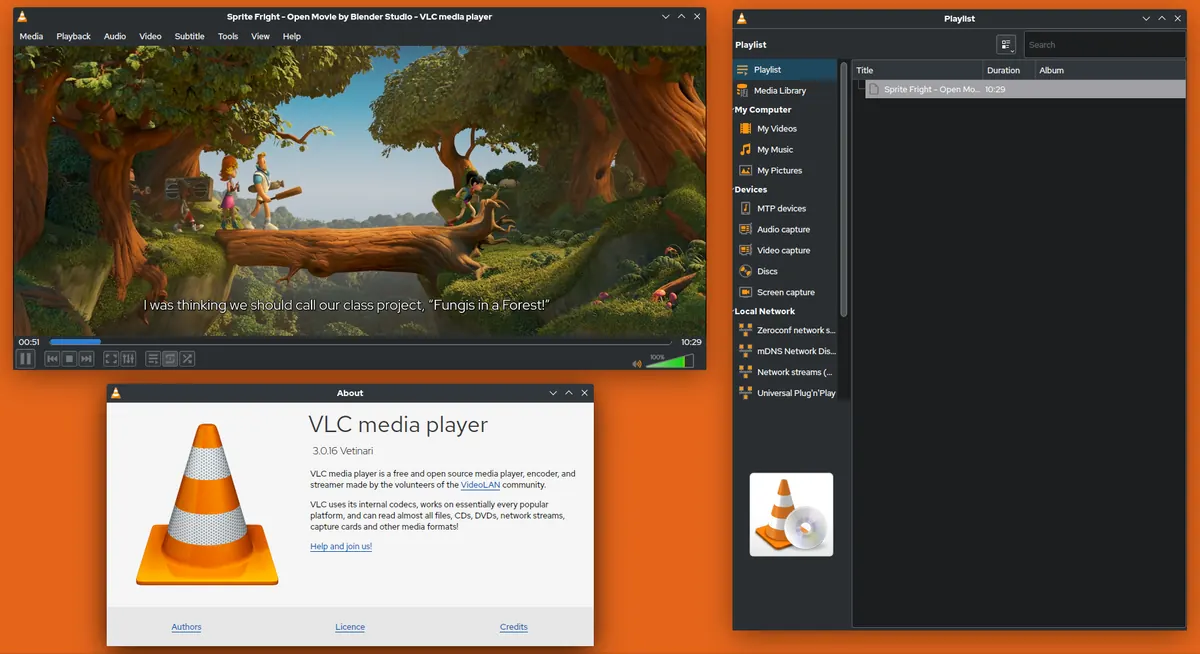
Test the playlist in VLC on a computer first, so you know any problem lies with the app rather than the link.
Avoiding lookalikes and misspellings
Searching misspelled names can surface lookalike apps. Verify the developer name, install only from your TV's official store and type the website shown inside the app rather than following search adverts.
When a streaming stick is better
If your TV's store lists none of these apps, or they run slowly, a streaming stick or Android TV box opens up many players, including login-style apps. Our best IPTV player guide compares options.
Costs over time
When comparing activation costs, think about how long you will keep each TV and how many TVs you have. A one-time per-device fee is often cheapest for a TV you keep for years; a yearly fee may suit you if you expect to change apps. Multiply per-device prices by the number of TVs you plan to use. Free editions with adverts can be enough for occasional viewing on a second TV.
Privacy and panel security
Because playlists are added through websites, check whether each app lets you lock your device's entry with a password or PIN. Keep identifiers and playlist links private, remove old TVs from the panel before selling them and use only the official website shown in the app. Our guide to web-panel player security explains these steps.
Support and updates
Look at each app's update history in the TV store and whether its website lists a support contact. Regular updates reduce the chance that a TV software update breaks the app. Clear documentation and support make troubleshooting easier.
Accessibility and comfort
Compare text size, contrast and menu layouts from your usual viewing distance. Small differences in readability matter for everyday use, especially for older family members.
Common mistakes
- Activating several apps before deciding.
- Comparing apps with different playlists.
- Installing lookalikes from misspelled searches.
- Expecting any app to include channels.
A worked example
A viewer searches smarte one iptv and finds several similar apps for their TV. They install Smart One and one alternative, add the same playlist to both and watch a match in each. One loads the guide faster and has clearer favourites, so they activate it and uninstall the other.
Checklist
- List candidate apps available on your TV.
- Compare linking, activation and guide support.
- Test with the same playlist.
- Activate only your favourite.
- Consider a streaming stick if none suit.
Key terms
- Upload-style player: a TV app whose playlist is added through a website.
- Connection code: a temporary code linking the website to your TV.
- EPG: electronic programme guide.
Using a TV player with Monster IPTV
Monster IPTV playlist links work with many upload-style and login-style players. Support can help you choose; see the supported devices page.
Deciding quickly
Shortlist two apps, test both with the same playlist for one evening each and keep the one with the clearer guide and smoother playback.
Remember the device limit
Whichever player you choose, each TV playing at the same time counts toward your service's device limit, so plan screens accordingly.
Keeping notes across apps
Record which app runs on which TV, its identifier and activation date, so future changes take minutes rather than an evening.
Frequently asked questions
What is smarte one iptv?
A common spelling of Smart One IPTV, a TV player app name.
How do upload-style players differ?
In linking method, activation, guide support, playlist options and interface.
Which one is best?
The one that runs smoothly on your TV with your playlist; test two side by side.
Will any upload-style player give me channels by itself?
No. You add a playlist from your service.
Does Monster IPTV work with any particular one of these apps?
Monster IPTV playlists work with many of them, but Monster IPTV has no affiliation with any of their developers.
Summary
smarte one iptv searches usually lead to comparing upload-style TV players. Compare linking method, activation, guide support and interface, test two apps with the same playlist, avoid lookalikes and activate only the one that suits your TV.