A Samsung app IPTV setup works best on recent Samsung TVs running current Tizen software. Owners of older Samsung TVs often find that the player they want is missing from the store, will not install or runs slowly. That is usually not a fault but a consequence of the TV's age and software platform.
This guide explains how model year affects app availability and which alternatives bring IPTV to older sets. Monster IPTV is not affiliated with Samsung. For current models, see our Samsung IPTV app guide; for fixing problems, see IPTV app Samsung troubleshooting.
Why model year matters for a Samsung app IPTV setup
| TV age | What owners often experience |
|---|---|
| Recent models | Current Tizen, wide app choice, regular updates |
| A few years old | Most apps available; some new apps may not support the model |
| Older models | Fewer or no new apps; updates may have ended |
| Very old smart TVs | Earlier smart platforms; app stores may no longer offer new apps |
Older Samsung smart TVs used earlier platforms before Tizen, and app support for those has largely ended. Even Tizen TVs stop receiving app updates after some years.
How to find your model year
- Open Settings and look for Support or About This TV.
- Note the model code and software version.
- Search the model code on Samsung's website for its year and specifications.
Signs your TV is the limit
- The player you want does not appear in the store.
- Apps install but crash or run slowly.
- The TV no longer offers software updates.
- Newer video formats such as HEVC do not play smoothly.
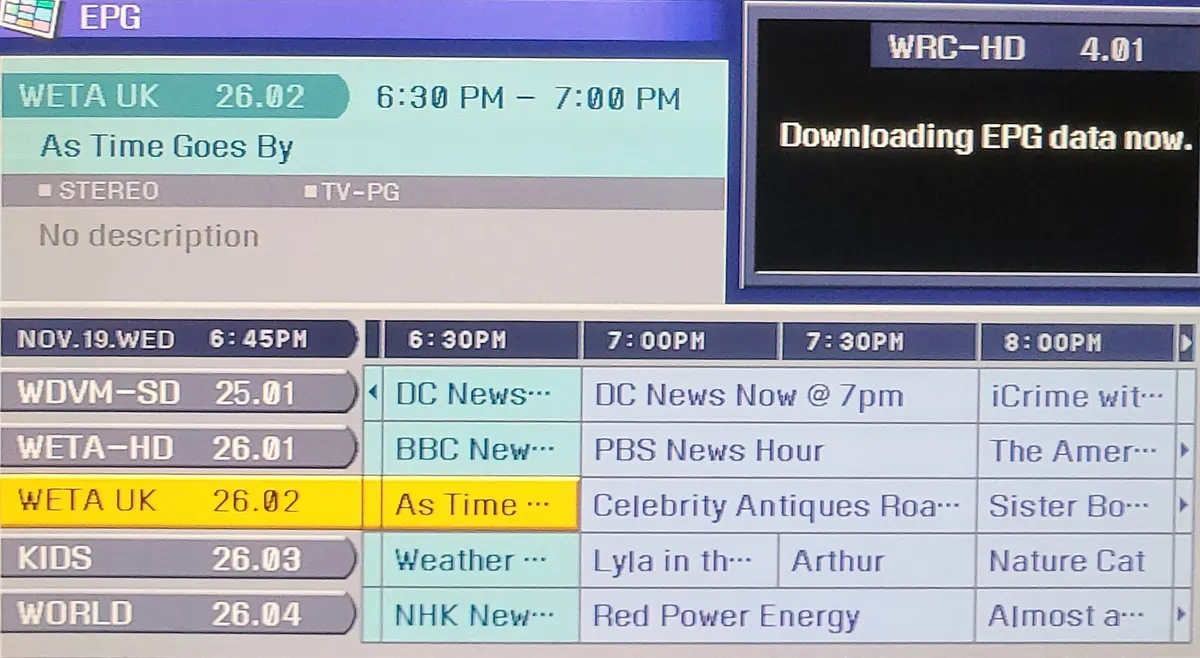
Samsung app IPTV alternatives for older TVs
| Option | Why it helps |
|---|---|
| Streaming stick | Adds a current app platform via HDMI |
| Android TV box | More apps, Ethernet and storage |
| Apple TV | Current apps and long software support |
| Casting from a phone | Quick fix for occasional viewing |
| Computer via HDMI | Works with VLC and desktop players |
A streaming stick is usually the cheapest way to bring a modern IPTV app to an older TV. Our IP TV box setup guide covers first-time setup.
Using the TV with an external device
- Plug the device into a free HDMI port.
- Select that HDMI input on the TV.
- Enable Anynet+ (Samsung's HDMI-CEC) so the TV remote can control the device.
- Set the device's resolution to match the TV.
What still works on older TVs
Built-in broadcast tuners, existing apps that still receive updates and media playback from USB drives may continue to work. You can keep using these features alongside an external streaming device.
Keeping the older TV useful
An older TV can still be an excellent screen. Its panel quality does not change just because its software ages. Adding a streaming device gives it modern apps, frequent updates and better performance, often for far less than a new TV. Use the TV's own settings for picture modes and audio, and let the streaming device handle the apps.
Picture and sound tips with an external device
Set the streaming device's output to match the TV's native resolution. If the TV is not 4K, a 4K stick still works and outputs HD. Turn off heavy picture processing on the TV if it causes artefacts. If you use a soundbar, connect it through the TV's ARC port or directly to the device if supported.
Network considerations
Older TVs often have slower Wi-Fi radios. A streaming stick with a modern Wi-Fi chip, or an Ethernet adapter, usually improves stability significantly for a Samsung app IPTV alternative setup.
Common mistakes
- Sideloading apps onto older TVs from unofficial sources.
- Buying a new TV when a streaming stick would do.
- Assuming a missing app is a service problem.
- Forgetting to enable Anynet+ for one-remote control.
A worked example
A household with an eight-year-old Samsung TV cannot find their preferred IPTV player in the store. They check the model year, confirm updates have ended and add a streaming stick with Ethernet adapter. With Anynet+ enabled, the Samsung remote controls the stick, and the player runs smoothly.
Checklist
- Find your TV's model year.
- Check whether updates continue.
- Look for the app in the store.
- Add a streaming device if needed.
- Enable Anynet+.
Key terms
- Tizen: Samsung's current smart TV platform.
- Anynet+: Samsung's name for HDMI-CEC.
- Model code: the identifier showing the TV's series and year.
Using older TVs with Monster IPTV
Monster IPTV works with players on streaming sticks, boxes and many smart TVs. See the supported devices page.
When to replace the TV
If the panel itself is failing, the TV is very small for your room or it lacks HDMI inputs you need, a new TV may make sense. Otherwise, a streaming device is usually the better value. When choosing a new TV, check the platform and app availability first, as explained in our smart IP TV buying guide.
Remote convenience
With Anynet+ enabled, the Samsung remote can often navigate the streaming device. If some buttons do not work, keep the device's own remote nearby, or use the platform's phone remote app for typing.
Quick summary
Check the model year, look for the app, add a streaming device if needed and enable Anynet+.
Before buying anything
Check whether your preferred player is available on the streaming device you plan to buy, so the upgrade solves the problem.
Frequently asked questions
Why can't I find IPTV apps on my older Samsung TV?
Older models may no longer receive new apps or updates.
How do I check my TV's model year?
Look up the model code in Settings on Samsung's website.
What is the cheapest fix?
A streaming stick connected by HDMI.
Can the Samsung remote control a stick?
Often, if Anynet+ (HDMI-CEC) is enabled.
Should I sideload apps on an old TV?
No. Use official stores or an external device.
Summary
A Samsung app IPTV setup depends on the TV's model year. If your older Samsung lacks the apps you need, add a streaming stick or box, enable Anynet+ and keep using the TV's other features.