Choosing an IPTV application for a household is different from choosing one for yourself. Children need safe, simple access to their programmes; older relatives may need larger text and subtitles; and everyone wants to find their channels quickly. The right app, set up thoughtfully, makes TV easy and safe for every age.
This guide covers the family-focused features to look for and how to set them up. Monster IPTV is not affiliated with any player developer; features vary by app, edition and device. For general player comparisons, see our best IPTV player guide.
Family features to compare
| Feature | Why it matters |
|---|---|
| Parental PIN | Locks categories or channels unsuitable for children |
| Profiles | Separate favourites and settings per person |
| Kids mode | Simplified interface with only approved content |
| Subtitles | Help viewers with hearing loss and language learners |
| Text size and contrast | Easier reading from the sofa |
| Voice search | Quick access without typing |
| Simple layout | Fewer steps to reach favourite channels |
Setting up parental controls
- Open the app's parental control or lock settings.
- Choose a PIN children are unlikely to guess.
- Lock categories that are not suitable for them.
- Test by trying to open a locked category.
- Add device-level restrictions for app installs and purchases.
App-level locks protect inside the app; device-level settings stop children installing other apps.
Profiles for each family member
Where supported, create profiles:
- Children: only approved channels and a short favourites list.
- Teenagers: wider access with sensible limits.
- Parents and older relatives: their own favourites and preferred text size.
If the app lacks profiles, separate playlists can serve a similar purpose. Our guide to personalising your IPTV application explains favourites and groups.
Accessibility settings
- Subtitles: turn on by default where available; check that the app respects the device's caption style.
- Audio description: available on some channels from some broadcasters.
- Text size and themes: larger fonts and high-contrast themes help readability.
- Voice control: many TV platforms support voice search and commands.
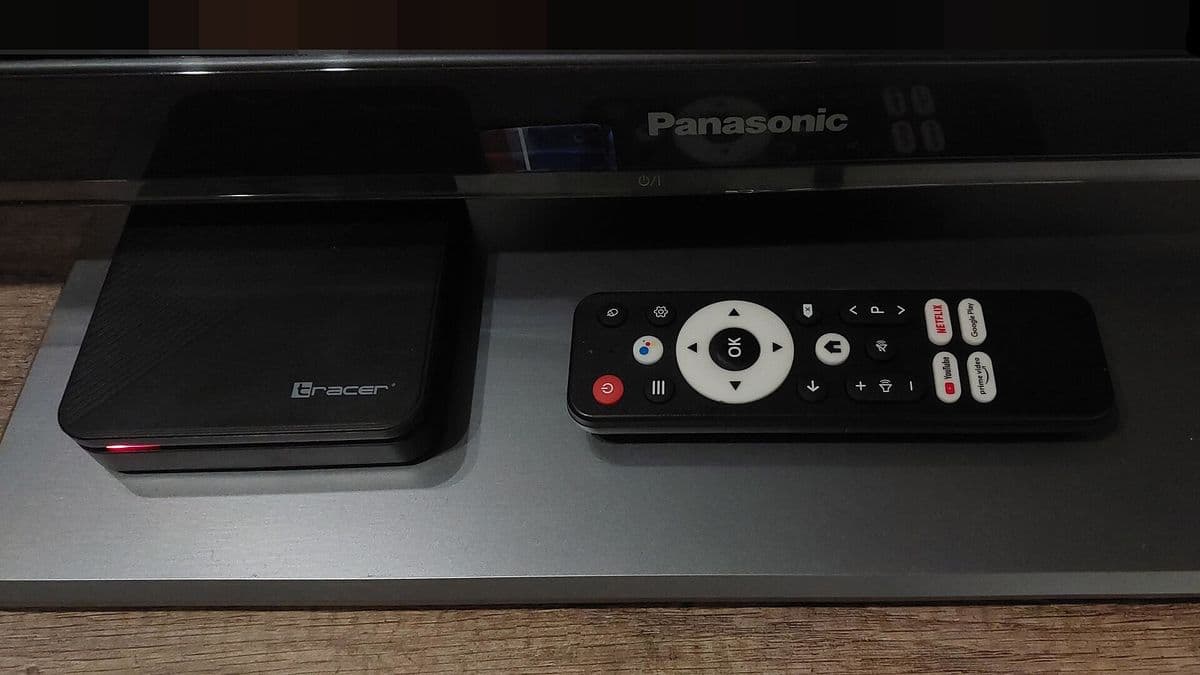
- Remote simplicity: HDMI-CEC lets one remote control TV and box.
Keeping it simple for less technical users
- Pin the app to the TV's home screen.
- Set the app to open on favourites or the last channel, if supported.
- Keep favourites short and in a logical order.
- Write a simple instruction card for grandparents or babysitters.
Screen time and routines
Some platforms offer screen-time limits or bedtime modes at the device level. Combine these with app settings to support family routines.
Testing with the whole family
During a trial, let each family member try the app. Watch for confusion: hard-to-find buttons, unreadable text or too many steps. Their experience matters more than feature lists.
Choosing between apps for a family
When comparing apps, list the features your family needs and test each candidate with the same playlist. Ask each family member to find a favourite channel and change the volume or subtitles. The app that the least technical person in your home can use comfortably is usually the right choice.
Managing devices across the home
If children have tablets and parents use the TV, set up each device with appropriate profiles and locks. Keep track of how many devices may play at once so the household stays within the plan's device limit, and agree simple rules for busy evenings.
Privacy for children
Check whether the app keeps viewing history or shows recommendations, and turn these off for children's profiles if possible. Avoid apps that request unnecessary permissions on children's devices.
Common mistakes
- Relying on app locks without device-level restrictions.
- Using a simple PIN like 0000.
- Long favourites lists for children.
- Ignoring subtitles and text size for older relatives.
A worked example
A family with two young children and a grandparent sets up an IPTV application on the living-room TV box. They create a children's profile with eight channels, a parental PIN for other categories and device restrictions on purchases. For the grandparent, they enlarge text, enable subtitles and pin the app to the home screen. Everyone finds their channels in seconds.
Checklist
- Compare family features.
- Set up PINs and device restrictions.
- Create profiles or playlists per person.
- Enable accessibility settings.
- Test with every family member.
Key terms
- Parental PIN: a code that locks content or settings.
- Profile: a separate set of preferences for one user.
- HDMI-CEC: control of several devices with one remote.
Using an app with Monster IPTV
Monster IPTV works with many third-party players that offer parental controls and profiles. Plans cover one to five devices; see pricing and the supported devices page.
Reviewing settings as children grow
Revisit profiles and locks every few months. Older children may need access to more channels, while younger siblings may need stricter settings. A quick review keeps the IPTV application suitable for everyone.
Quick family setup checklist
Kids profile, parental PIN, device purchase lock, subtitles on where needed, larger text for older viewers and the app pinned to the home screen. Ten minutes of setup makes daily viewing easier for everyone.
When to ask for help
If setting up profiles or locks is confusing, ask your provider's support or check the app's official help pages. Many questions, such as how to reset a forgotten PIN, have simple answers in the documentation. Keep the PIN somewhere safe but out of children's reach.
Frequently asked questions
What makes an IPTV application family-friendly?
Parental controls, profiles, a kids mode, accessibility settings and a simple layout.
Are app PINs enough to protect children?
Combine them with device-level restrictions on installs and purchases.
Can I enlarge text for older relatives?
Many apps and TV platforms offer larger text and high-contrast themes.
Do IPTV apps support subtitles?
Many do, depending on the channel and app; check during a trial.
What if my app has no profiles?
Use separate playlists or short favourites lists for each person.
Summary
A family-friendly IPTV application combines parental controls, profiles, accessibility settings and a simple layout. Set up PINs and device restrictions, create profiles, enable subtitles and test with everyone in the household.