People search HP IPTV for different reasons, but most often they want to watch internet TV on an HP laptop or desktop running Windows. The good news is that any reasonably recent Windows computer can play IPTV smoothly with the right player and a few settings. Monster IPTV is not affiliated with HP Inc., and this guide applies to most Windows laptops, whatever the brand.
This guide covers choosing a player, tuning Windows for smooth playback, connecting the laptop to a TV and fixing common problems.
Choosing a player on Windows
| Player type | Notes |
|---|---|
| VLC | Free, opens M3U links and files; great for testing |
| Dedicated IPTV desktop players | Guides, favourites and Xtream login support |
| Official desktop editions of mobile apps | Where the developer offers them |
| Browser-based players | Convenient but limited format support |
Install from the Microsoft Store or the developer's official website. Our guides to the IPTV player for Windows and IPTV Smarters Pro on PC compare options.
Tuning Windows for smooth playback
- Update graphics drivers: use Windows Update or the laptop maker's support tool.
- Enable hardware decoding in your player if available.
- Use a balanced or performance power mode when plugged in.
- Close heavy background apps such as large downloads or games.
- Keep Windows updated, but avoid installing big updates just before a live event.
Network tips
- Use Ethernet if your laptop has a port or a USB adapter.
- On Wi-Fi, connect to the 5 GHz band near the router.
- Pause cloud sync and large downloads while watching.
Connecting the laptop to a TV
- Connect an HDMI cable from the laptop to the TV.
- Press Windows + P and choose Duplicate or Second screen only.
- Set the resolution to match the TV in Display settings.
- Choose the TV as the audio output in Sound settings.
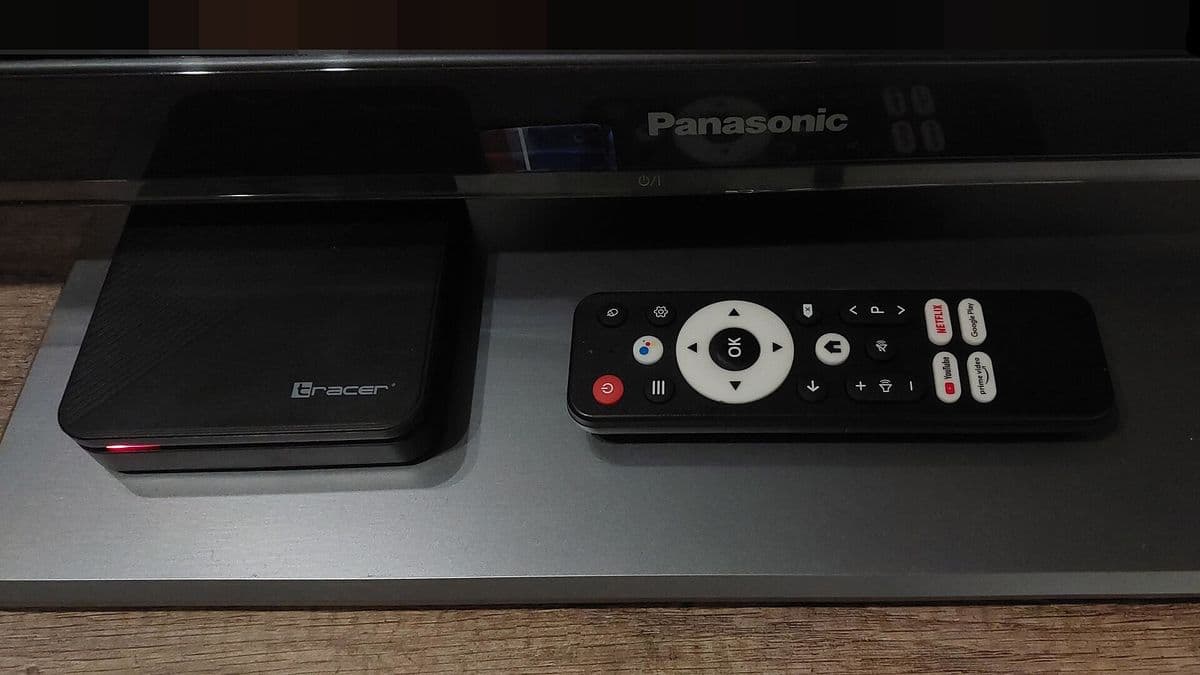
Some laptops output video through USB-C; an adapter may be needed. For regular big-screen viewing, a streaming stick or TV box is often more convenient than a laptop; our guide to getting IP to TV compares options.
Common problems and fixes
| Problem | Likely cause | Fix |
|---|---|---|
| Stutter on HD sport | Software decoding or power saving | Enable hardware decoding; plug in; performance mode |
| No sound on TV | Audio output still on laptop | Select TV in Sound settings |
| Black bars or wrong size | Resolution or scaling mismatch | Match TV resolution; adjust scaling |
| Buffering on Wi-Fi | Weak signal or busy network | Ethernet or 5 GHz; pause downloads |
| Player won't install | Unofficial download blocked | Use official store or website |
Security
- Install players only from official sources.
- Keep Windows Defender or your security software active.
- Do not run "codec packs" or "players" from unknown sites.
- Keep your login out of screenshots.
Using the laptop's own screen well
On the laptop screen itself, set the player to full screen, adjust brightness for the room and use headphones for clearer audio. If the laptop has a high-resolution display, choose an HD or higher stream for a sharp picture; on smaller screens, a lower-quality stream may look almost as good and use less data.
Several devices in the home
A laptop counts as a device when it plays at the same time as your TV or phone. If you often watch on several screens at once, check your plan's device limit. Close the player on the laptop when you are not watching.
Keeping the laptop cool
Long viewing sessions can heat laptops, especially on soft surfaces. Use a hard surface or a stand so vents stay clear. Overheating can cause the processor to slow down, which may lead to stutter during long matches.
Multiple monitors
If you use the laptop with an external monitor or TV, make sure the player runs on the display you are watching. Windows sometimes opens apps on the laptop screen; drag the window or use the display settings to choose the main display.
Common mistakes
- Running on battery saver while streaming.
- Downloading players from search adverts.
- Forgetting to switch audio to the TV.
- Using Wi-Fi far from the router for live sport.
A worked example
A viewer wants HP IPTV playback on a three-year-old HP laptop and finds sport stutters. They update the graphics driver, enable hardware decoding in their player, plug the laptop in with the performance power mode and connect by Ethernet using a USB adapter. Sport now plays smoothly, and they connect to the TV over HDMI for match nights.
Checklist
- Install a player from official sources.
- Update graphics drivers.
- Enable hardware decoding and performance mode.
- Prefer Ethernet.
- Set HDMI display and audio correctly.
Key terms
- Hardware decoding: using the graphics chip to decode video efficiently.
- Power mode: Windows setting balancing performance and battery.
- HDMI audio output: sending sound to the TV over HDMI.
Using Monster IPTV on Windows
Monster IPTV works with third-party players on Windows, including VLC and desktop IPTV players. See the supported devices page.
Quick troubleshooting order
Check the network first, then the player's decoding setting, then Windows power mode, then graphics drivers. Changing one thing at a time shows exactly which fix worked on your laptop.
Frequently asked questions
Can I watch IPTV on an HP laptop?
Yes. Any recent Windows laptop can play IPTV with a suitable player.
Is HP IPTV an official HP product?
We know of no official HP IPTV service; this guide covers watching IPTV on HP and other Windows computers.
Why does sport stutter on my laptop?
Often software decoding, power saving or Wi-Fi; enable hardware decoding and plug in.
How do I send sound to the TV?
Choose the TV as the output device in Windows Sound settings.
Is a laptop better than a streaming stick for the TV?
For occasional use it works; for everyday viewing a stick or box is usually easier.
Summary
HP IPTV viewing on a Windows laptop works well with an official player, updated drivers, hardware decoding, a performance power mode and a stable connection. Connect over HDMI for big-screen viewing, or use a streaming stick for everyday TV.