People searching for GitHub VLC IPTV usually want to combine two free tools: public IPTV playlists hosted on GitHub, such as those published by the open-source iptv-org project, and VLC media player, which can open those playlists on almost any device. Together, they make a quick, free way to explore channels that broadcasters make openly available.
This guide shows how to open GitHub-hosted playlists in VLC on Windows, Mac, Android and iPhone, explains how playlist links on GitHub work, and covers fixes for streams that will not play.
How GitHub hosts IPTV playlists
GitHub is a platform for sharing code and files. Some projects use it to publish M3U playlists, which are plain-text lists of stream addresses. Two link types matter:
| Link type | What it shows | Use in VLC? |
|---|---|---|
| Repository page link | A web page displaying the file | No, VLC needs the raw file |
| Raw or published link | The plain M3U file itself | Yes |
Projects often publish their playlists on a simple web address as well, which is easier to copy. Always take links from the project's official page or README.
Only use playlists of streams that broadcasters publish openly. Lists that include paid premium channels are very unlikely to be authorised; our guide to public IPTV playlists explains the difference.
Opening a GitHub playlist in VLC on Windows or Mac
- Install VLC from the official VideoLAN website.
- Copy the raw or published playlist link from the project's README.
- In VLC, choose Media (Windows) or File (Mac), then Open Network Stream.
- Paste the link and press Play.
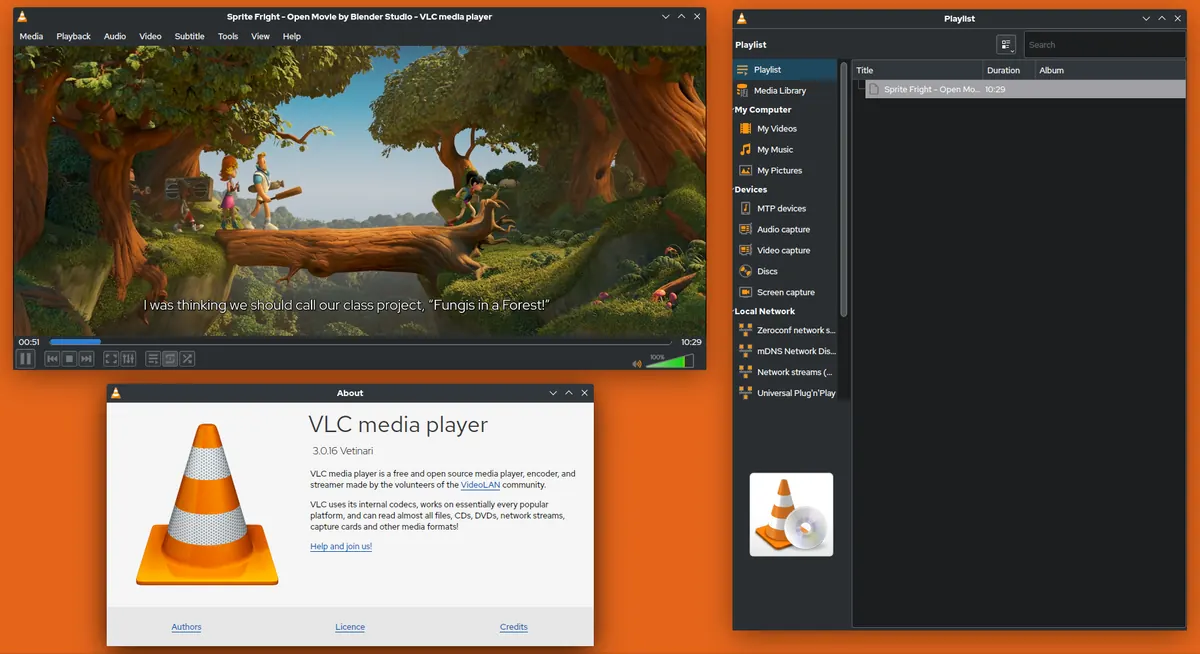
- Open the Playlist view to browse channels.
Large global playlists can take a moment to load. Country or category playlists are faster.
Opening it on Android and iPhone
- Install VLC from Google Play or the App Store.
- Open VLC and find the Stream or Network option.
- Paste the playlist link and open it.
- Browse the channel list and tap a channel to play.
On phones, Wi-Fi is better than mobile data for long viewing.
Why some channels will not play
| Problem | Likely cause | What to try |
|---|---|---|
| Channel does nothing | Stream offline or moved | Try another channel; lists change often |
| "Geo-blocked" or error | Broadcaster restricts by country | Expected; choose channels for your region |
| Plays then freezes | Overloaded or unstable source | Try later or another channel |
| Playlist empty | Wrong link type (page, not raw) | Use the raw or published link |
| Very slow to load | Huge global playlist | Use a smaller country playlist |
Making it more like TV
VLC is excellent for testing but has no full programme guide. If you enjoy public channels, a dedicated IPTV player or Kodi with PVR IPTV Simple Client can load the same playlist with a guide and remote-friendly menus. Our Kodi Simple IPTV guide and IPTV player Windows guide explain the options.
Staying safe
- Download VLC only from official sources.
- Use playlist links from official project pages, not copies on unknown sites.
- Avoid lists promising premium channels for free.
- Never install extra software that a playlist page says you "need".
A worked example
A user wants to watch a few openly available international news channels on a laptop. They copy the country playlist link from the iptv-org README, open it in VLC, and find that most channels play while two are geo-blocked. They add the working channels to a separate VLC playlist for quick access. For the living-room TV, they later add the same link to a player app with a guide.
Checklist
- Install VLC from the official source.
- Use the raw or published playlist link.
- Start with a small playlist.
- Expect some channels to fail.
- Move to a dedicated player if you want a guide.
Key terms
- Raw link: the direct address of a file, without the GitHub web page around it.
- README: the project's information page, usually listing playlist links.
- Geo-blocking: restricting a stream to viewers in certain countries.
GitHub VLC IPTV on different platforms
| Platform | VLC menu | Notes |
|---|---|---|
| Windows | Media → Open Network Stream | Fastest way to test links |
| Mac | File → Open Network | Same playlist view as Windows |
| Android | Stream / Network | Good for quick checks on the go |
| iPhone and iPad | Network → Open Network Stream | Wi-Fi recommended |
| Android TV | Network streams | Remote navigation is basic |
On TVs, VLC works but navigation through long lists is slow. A player app with favourites is more comfortable for regular viewing.
Keeping your list useful
Public lists change constantly. Rather than reloading a huge global list every time, save the handful of channels that work for you as a personal VLC playlist, or keep a small country list bookmarked. Check the project's README occasionally, because playlist addresses and structures can change as the project evolves.
When VLC is the right tool
VLC shines for quick checks: confirming that a link works, sampling channels before adding a playlist to a TV app, or watching a single stream on a laptop. It is less suited to daily living-room viewing, where a programme guide, favourites and a remote-friendly interface make a big difference.
Frequently asked questions
What does GitHub VLC IPTV mean?
It refers to opening IPTV playlists hosted on GitHub in VLC media player.
Why does VLC show nothing when I paste a GitHub link?
You probably used the repository page link. Use the raw or published playlist link from the README.
Is it legal to watch GitHub VLC IPTV playlists?
Playlists of openly published streams are generally legitimate. Lists containing paid channels are not. Laws vary by country.
Can I use GitHub VLC IPTV on a smart TV?
VLC is available on some TV platforms; alternatively, add the playlist link to an IPTV player app on the TV.
Why are some channels blocked?
Broadcasters often restrict streams to viewers in their own country.
Summary
GitHub VLC IPTV setups pair openly published playlists with a free, cross-platform player. Use official raw links, start with small playlists, expect broken or blocked channels, and switch to a dedicated player if you want a proper programme guide.