An application IPTV player looks simple on screen: you pick a channel and it plays. Behind that, the app works through a chain of steps: logging in, requesting channel lists, downloading and caching guide data, fetching stream addresses and decoding video. Understanding this chain makes troubleshooting much easier, because each kind of problem points to a particular step.
This guide follows an IPTV app from login to playback and shows where common problems arise. For the wider toolkit of apps, see our guide to applications IPTV users rely on.
The chain at a glance
| Step | What the app does |
|---|---|
| 1. Login | Sends your credentials or loads your playlist link |
| 2. Account check | Server confirms the account and its limits |
| 3. Category and channel lists | App downloads lists of live channels, films and series |
| 4. Guide data | App downloads and caches programme information |
| 5. Stream request | When you choose a channel, the app requests its stream address |
| 6. Playback | The player buffers, decodes and displays video and audio |
Step 1 and 2: login and account check
With an Xtream-style login, the app sends your server address, username and password to the provider's interface, which replies with account status, expiry and connection limits. With an M3U link, the app simply downloads the playlist file. Our Xcodes IPTV guide explains the Xtream-style format.
Common problems here: typing errors, wrong port, expired account, too many connections.
Step 3: channel lists
The app requests categories and channels, then stores them locally. Large lists take longer on slower devices.
Common problems here: slow loading on low-powered devices, timeouts on weak connections.
Step 4: guide data
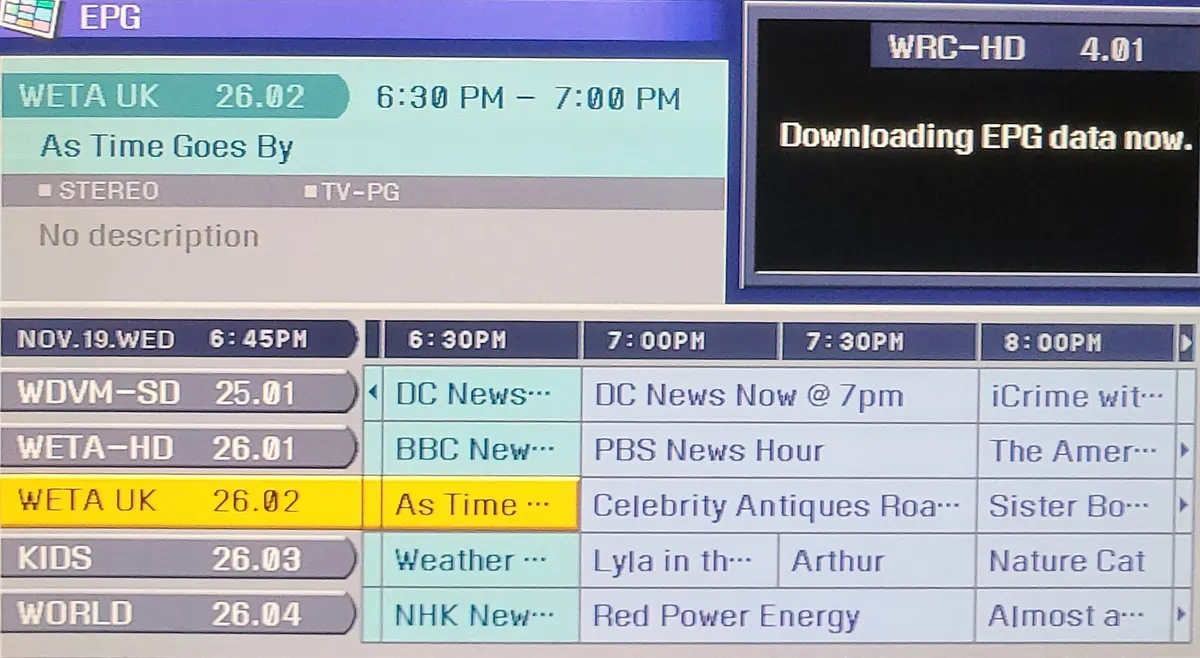
The app downloads guide data, often as XMLTV, and matches it to channels using IDs. Guides can be large, so apps cache them and refresh periodically.
Common problems here: empty guide (no link or mismatched IDs), wrong times (time zone or offset), stale data (no refresh).
Step 5: stream request
When you select a channel, the app builds or retrieves the stream address and requests it. The stream may be HLS segments or a continuous transport stream.
Common problems here: channel offline, connection limit reached, format not supported by the chosen player engine.
Step 6: playback
The player buffers a few seconds of video, decodes it using hardware or software and displays it, keeping audio in sync.
Common problems here: stuttering from weak decoding or Wi-Fi, buffering from network drops, lip-sync issues.
Mapping symptoms to steps
| Symptom | Likely step |
|---|---|
| "Invalid login" | 1–2 |
| Lists load forever | 3 |
| No programme information | 4 |
| One channel won't play | 5 |
| Picture stutters | 6 |
Knowing the step tells you what to try. Our IPTV test toolkit shows how to check each layer.
Why apps cache data
Caching channel lists and guides makes apps faster after the first load but can leave stale information. Clearing the cache or refreshing forces a fresh download, which fixes many "wrong guide" and "missing channel" issues.
How connection limits work
Many services limit how many streams an account can play at once. The server tracks active streams, and when the limit is reached, a new request at step 5 may be refused. Closing the app on one device frees a connection, but some servers take a short time to notice. If you see "too many connections" errors, close unused apps, wait a minute and try again.
Why some apps load faster than others
Apps differ in how they request and store data. Some download the whole channel list and guide at once, which is slow at first but quick afterwards. Others load categories on demand, which starts faster but can feel slower when browsing. Low-powered devices benefit from apps that load less at once and from playlists with fewer groups.
External players
Some apps can hand step 6 to an external player such as VLC or MX Player. This can help when a built-in player struggles with a particular format. The app still handles login, lists and guide; only playback moves to the other player.
Updates that change behaviour
App updates can change how caching, guide refresh or player engines work. If something behaves differently after an update, check the settings again and clear the cache before assuming the service has changed.
Common mistakes
- Reinstalling the app when the problem is the login.
- Ignoring guide refresh settings.
- Blaming the service for decoder limits on old devices.
- Changing several settings at once.
A worked example
A viewer's app logs in and shows channels, but the guide is empty. Recognising that steps 1 to 3 worked, they focus on step 4, find no guide link configured, add the provider's EPG link and refresh. The guide appears.
Checklist
- Identify which step fails.
- Check login details for steps 1–2.
- Allow time or a faster device for step 3.
- Add and refresh the guide for step 4.
- Switch player engine or use Ethernet for steps 5–6.
Key terms
- API: an interface the app uses to request data from the server.
- Cache: locally stored data that speeds up loading.
- Player engine: the component that decodes and displays video.
Using an IPTV app with Monster IPTV
Monster IPTV works with many third-party players. When contacting support, mention which step fails; see the supported devices page.
Summary of the chain
Login, lists, guide, stream, playback: fix the step that fails.
Frequently asked questions
How does an application IPTV player work?
It logs in, downloads channel lists and guide data, requests streams and plays them.
Why is my guide empty when channels work?
The guide step failed: no guide link, mismatched IDs or no refresh.
Why does one channel fail while others play?
That stream may be offline, or the connection limit may be reached.
Does clearing the cache help?
Often, for stale guides or channel lists.
What causes stuttering?
Usually decoding limits or network drops during playback.
Summary
An application IPTV player works through login, account check, channel lists, guide data, stream requests and playback. Mapping symptoms to these steps makes troubleshooting quick: fix the step that fails rather than changing everything at once.